Cafés and restaurants
Customers connect on their own and staff stop answering "what's the password?".
Stop spelling out passwords. Enter your network name and password and guests join with one scan. Get a wall sign or table stand to 3D print, or a PNG to print on paper.
The same design as an image, for menus, posters, websites or social media.
Want it as a keychain, stand or sign?
Everything is created in your browser: your link, your logo and your files are never uploaded to any server.
Network name and password exactly as on the router, including upper and lower case. Most routers use WPA/WPA2/WPA3.
A wall sign with two mounting holes, or a table stand. Add a text like "Free Wi-Fi".
Check that it connects on an iPhone and an Android phone, then download and print.
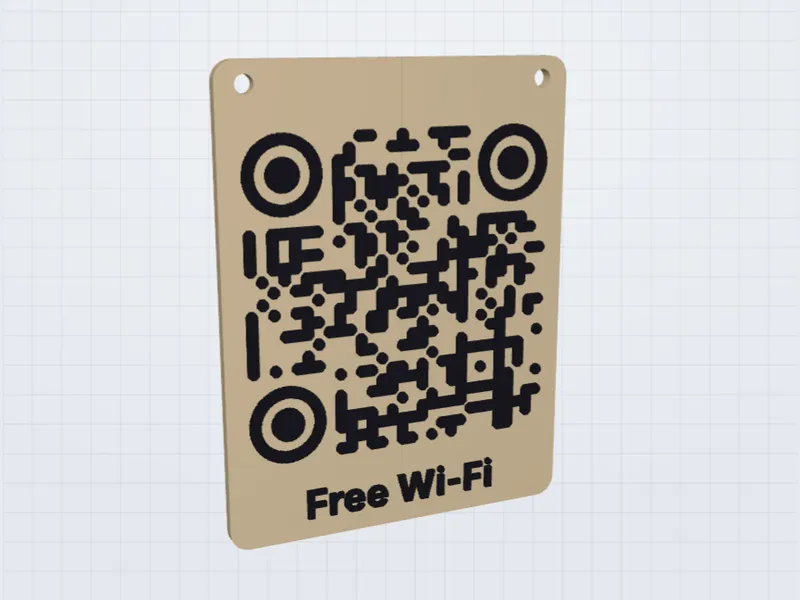
Customers connect on their own and staff stop answering "what's the password?".
A sign by the door next to the house rules.
Waiting rooms and meeting rooms, on a separate guest network.
For guests and babysitters: a small sign next to the router.
Your logo in full color, a special shape, a bigger sign, 50 keychains for your event or a stand for every table. Tell us your idea and we'll design and print it with you.
Turn on your router's guest network so visitors never join your private network, and make the code for that one.
The password is stored inside the code, so a new password needs a new code. Keep a fixed password for the guest network.
The code is generated in your browser. Your network name and password are never sent to us.
Modern iPhones and Android phones read Wi-Fi codes with the camera and offer to join the network.
A Wi-Fi sign saves you from repeating the password all day, but it works best when you understand what the code contains and where its limits are. Here is what to check before you print.
A Wi-Fi code is plain text in a standard format: the network name, the type of security and the password, for example WIFI:T:WPA;S:NetworkName;P:Password;;. The iPhone camera and most modern Android phones recognise it and offer to join the network. The important consequence is that the password is stored in readable form: anyone who can scan the sign can also read the password from the code.
Because the password is effectively public, put it on a separate guest network instead of your main one. Most routers offer one, and it keeps visitors away from your computers, printers and cameras.
The WPA option covers the usual WPA2 and WPA3 personal networks on phones. If your router only accepts WPA3, some older phones will not connect even with a correct code, so a mixed WPA2/WPA3 mode is the safer setting for a public sign. Choose the no-password option only for genuinely open networks; note that a code cannot complete the sign-in page that some open networks show afterwards.
Semicolons, commas, colons, quotation marks and backslashes have a special meaning inside the code and need to be escaped when they appear in a network name or password. If yours contains any of them, test the sign with both an iPhone and an Android phone, or choose a simpler password. Hidden networks need the hidden option switched on, because the phone otherwise looks for a network that does not announce itself. Hiding a network adds no real security.
The code is static, so changing the router password makes every printed sign useless. That is another reason to use a guest network with a password you do not plan to change often. Keep the file of the design so that you can reprint a new sign in an afternoon.
In a short-term rental, put one sign at the entrance and another near the living area. In a café or shop, a sign at the counter saves the staff a stream of questions. In an office, use the guest network for visitors and keep staff devices on the protected one.
It stores the network name, password and security type in a standard format phones understand. Scan with the camera and tap "Join".
Yes. The iPhone camera and most recent Android phones read Wi-Fi codes without an app.
Anyone who scans it can join, just like a password written on a sign. That's why a separate guest network is best.
Yes. Tick "Hidden network" in the Wi-Fi tab before downloading.
Yes. Keychain ₪25, wall sign ₪49 and table stand ₪59 (Israeli shekels), with lower unit prices from 3 or 5 units. We ship across Israel and abroad: we quote international shipping when we confirm your order.
Turn any link into a 3D printable QR code: two-color 3MF or STL.
A keychain with your QR code in relief, ready to 3D print.
A table stand for your menu, Google reviews or payments.
Instagram, WhatsApp, Google reviews and more ideas in the main generator.
Last updated: September 30, 2026
This policy explains how FreeQRCode3D (“we”, “the site”) handles information when you use this QR code generator. The site is run by Elías, based in Tel Aviv, Israel. Contact: woldmanelias@gmail.com.
Nothing that you type or upload. Your links, Wi-Fi names and passwords, phone numbers, logos, and the PNG, SVG, 3MF and STL files are created entirely inside your browser. They are never sent to us or stored on any server. When you close the page, they are gone.
We have no accounts, sign-up forms or newsletters.
If you order a printed piece, you send us a message with your name, email address, city, the design (including the content of the QR code) and any notes. We use this only to confirm, make and ship your order and to reply to you; your postal address is requested when we confirm. We keep order emails as long as needed for the order and for legal and accounting obligations, and never sell or share them, except with the payment provider and the postal service needed to deliver your order.
Like any website, the service that hosts this page may keep standard technical logs (such as IP address, browser type and the time of the visit) to deliver and protect it. Fonts are loaded from Google Fonts, which receives your IP address to send them. Neither service receives the content you create in the tool.
This site may show ads from third parties such as Google AdSense. Third-party vendors, including Google, use cookies to serve ads based on your previous visits to this and other websites. Google's use of advertising cookies enables it and its partners to serve ads based on your visits to this site and/or other sites on the Internet. You can opt out of personalized advertising in Google Ads Settings or at aboutads.info. Learn more in how Google uses information from sites that use its services. Where the law requires it, we ask for your consent before any advertising cookies are set.
This site is not directed at children under 13 and we do not knowingly collect information from them.
Because we don't store personal data from the tool, there is usually nothing for us to access, correct or delete. For data held by advertising partners, use the opt-out links above or contact those companies directly. Depending on where you live (for example, under the EU GDPR or Israel's Privacy Protection Law), you may have additional rights, which we will respect. For any privacy question or request, write to woldmanelias@gmail.com.
If this policy changes, we'll update the date at the top of this page.
Last updated: September 30, 2026
FreeQRCode3D is a free online tool run by Elías, based in Tel Aviv, Israel. Contact: woldmanelias@gmail.com or WhatsApp +972 55 247 8806. By using the site you agree to these terms.
You can use FreeQRCode3D free of charge, for personal or commercial projects, to create QR codes and 3D printable files. Everything you create is yours, and you're responsible for the links and content you put in your codes. Don't use the tool to link to illegal, harmful or deceptive content.
The tool is provided “as is”. We work to make every code scannable and every file printable, but results depend on your printer, material, settings and the phone that scans it. Always test-scan your code before printing in quantity or distributing it. To the extent permitted by law, we are not liable for any loss arising from using the site or the files it produces.
When you send an order request, we reply to confirm the price, shipping and delivery estimate and send a secure payment link. The order is final only after you pay. Prices are in Israeli new shekels (₪). For shipments outside Israel, shipping is quoted separately and any import taxes or duties are paid by the buyer. Because every piece is made to order, we don't accept returns for change of mind; if a piece arrives damaged or the code doesn't scan because of a printing defect, we'll reprint it or refund you. You're responsible for checking the content of your QR code (link, Wi-Fi details, spelling of the text) before ordering.
We don't control the websites your QR codes point to, or the ads shown by advertising partners, and we're not responsible for their content.
QR Code is a registered trademark of DENSO WAVE INCORPORATED. Bambu Studio, OrcaSlicer, PrusaSlicer, Google, Instagram and WhatsApp are trademarks of their respective owners and are mentioned for reference only; this site is not affiliated with them.
These terms are governed by the laws of the State of Israel, without prejudice to any mandatory consumer rights you have where you live.
Last updated: September 30, 2026
Cookies are small files that websites store in your browser.
FreeQRCode3D doesn't set any tracking cookies of its own. It only uses your browser's session storage to remember that you closed the small corner ad, and that is erased when you close the tab.
When ads are enabled, advertising partners such as Google may set cookies to show and measure ads, including personalized ads based on your visits to other sites. Where the law requires it, a consent banner will ask for your permission first, and you can change your choice at any time.
You can block or delete cookies in your browser settings and opt out of personalized ads in Google Ads Settings. The QR code tool keeps working without cookies.
Questions about cookies: woldmanelias@gmail.com.
WhatsApp